

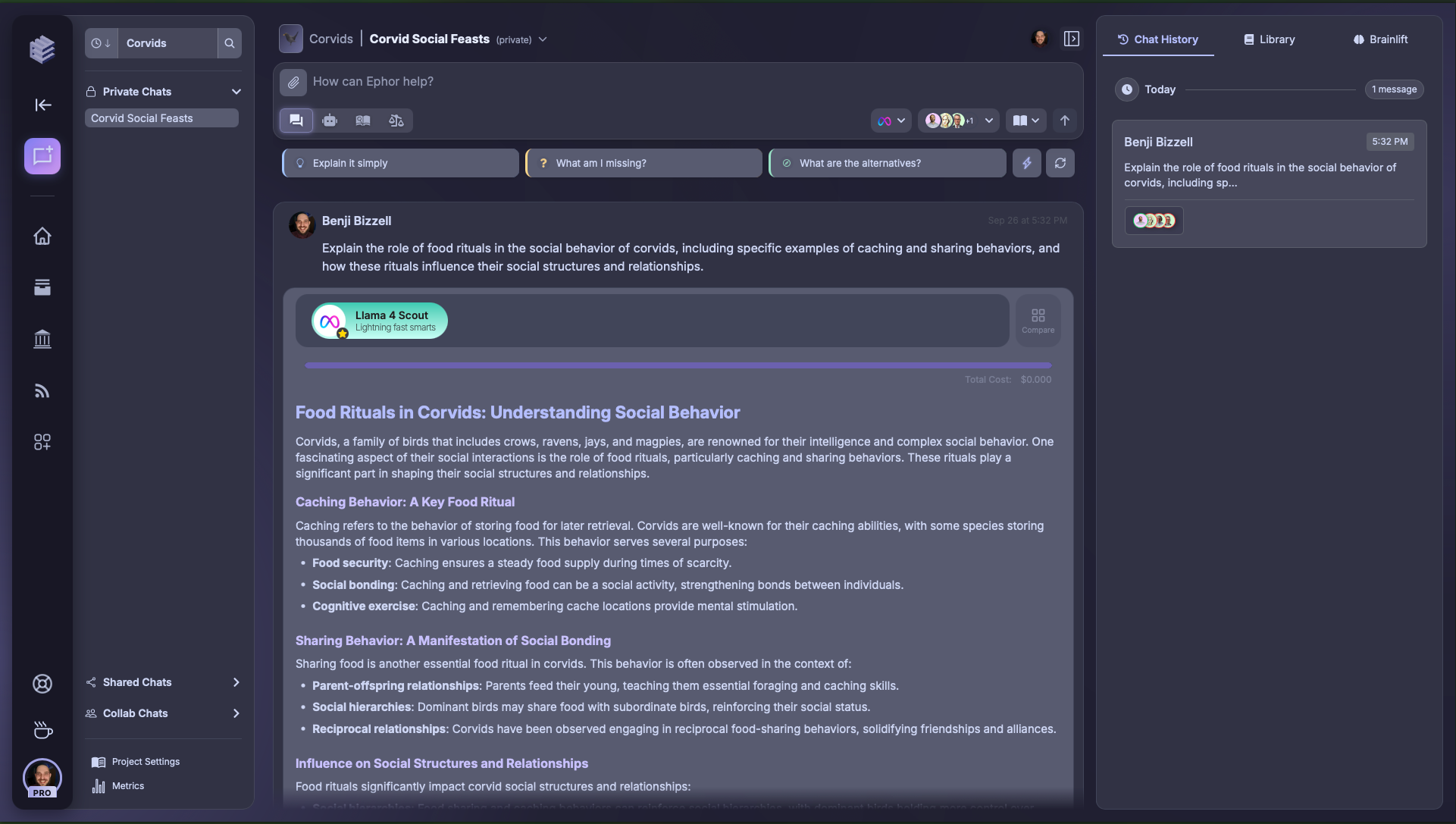
1) Left Sidebar (Project Navigation)
The left sidebar helps you manage navigation and context:- Global Nav – same vertical menu as the homepage.
- Project Selector – switch between projects quickly.
- Chats List – shows private, shared, and collaboration chats for the current project. Selecting one opens it in the main chat area.
- Quick Actions – create a new chat, jump into project settings, or browse metrics.
Organize chats by topic within a project — it makes returning to long-running threads much easier.
2) Center Chat Area
This is where you engage directly with Ephor and your selected Ephors:- Chat Header – shows chat title, participants, and allows toggling chat privacy (e.g., private vs shared).
- Prompt Bar – type messages, apply filters like Explain Simply or What am I missing?, and select which models or Ephors to query.
- Messages – see outputs from different models, with icons indicating which model generated each.
- Message Actions – copy responses, fork threads, or save the perfect response to Google Docs.
- External Feeds – inline integrations (like social or news snippets) appear below when selected, providing additional context.
3) Right Sidebar (Context & Resources)
The right sidebar provides context and resources for your current chat:- Chat History – revisit previous prompts and responses from this chat.
- Library – view all uploaded project files, grouped by folders.
- BrainLift – manage and refine your BrainLift; Ephor scores each entry and lets you edit or grade content.
Keep your BrainLift updated — the more tailored it is, the more aligned responses will be to your worldview and expertise.